
If your parish already schedules volunteers in Excel or Google Sheets, you have a useful starting point: the people, ministries and services your coordinator works with each week. The next step is to turn that information into a scheduling process that volunteers and another coordinator can understand.
Start with one Sunday Mass or another manageable service. Prepare its volunteer list, collect current availability and review one future scheduling period before expanding.
Ministry Steward does not currently import spreadsheet or CSV files. Use your sheet as a reference while you set up ministries and events, invite volunteers and add managed accounts where needed. Plan time for that initial setup and for volunteers to respond.
1. Choose the first service and the date you will switch
Pick a service whose coordinator can check the details and help volunteers through the first roster. For example, start with Sunday Mass at 9 am, with two readers, two ushers and two altar servers required each week.
Choose a future scheduling period and agree who will prepare it, who will review it and where volunteers should report changes. If next month's assignments are already agreed, decide whether to finish that period using the existing sheet and begin the following period in Ministry Steward.
Keep a dated copy of the current spreadsheet. Until the agreed switchover, tell volunteers which published schedule they should follow. Preparing a new roster should not silently replace assignments people have already accepted through your existing process.
2. Clean up the information you will use for setup
Work from one agreed copy of the volunteer list. Combine duplicate entries, confirm current contact details and ask ministry leads which people are still serving. Keep historical rosters separately so they do not get confused with the active team.
The columns below show how common spreadsheet information relates to setup in Ministry Steward. This is a preparation checklist, not an upload format.
| Information in your spreadsheet | How to use it in Ministry Steward |
|---|---|
| Volunteer name and current email | Invite a volunteer who will use their own login. After they accept, check their entry in the Volunteers list. |
| Someone who will not use their own login | Consider a managed account. For a dependent, link the appropriate guardian. |
| Ministries a person can serve in | Confirm their qualifications and assign the relevant ministries. |
| Mass or service dates and times | Create the event and its recurrence, then check the workspace timezone. |
| Number of people needed in each ministry | Enter the event's ministry requirements. |
| Regular preferences and dates away | Ask volunteers or linked guardians to enter current preferences and unavailable dates. |
| Already agreed assignments | Keep them as a reference when choosing the first period and reviewing the roster; they are not transferred from the sheet. |
Use the parish's approved training and screening decisions when assigning ministry qualifications. A qualification in the app controls scheduling eligibility; it does not establish that someone has completed the parish's requirements.
If your list is incomplete, the free volunteer sign-up templates can help you gather information before setup.
3. Set up the ministries and service requirements
The workspace owner creates the church account and chooses a plan to activate the trial. Owners and administrators can prepare ministries and events through setup. See the organization setup guide for the account and billing steps.
For the Sunday Mass example, create Readers, Ushers and Altar servers as ministries. Create the recurring 9 am Mass and set each ministry's requirement to two volunteers. Check its dates, recurrence and any exceptions before generating assignments.
Base supports ministry staffing counts. Premium also lets you create and name custom roles within each ministry, such as First Reading, Second Reading or Cross Bearer, and set position counts for an event. Choose the detail your parish needs; see the current plan details.
If several Masses belong to the same scheduling obligation, configure Event Groups and family arrangements before generating those rosters. Family coordination applies within the same linked Event Group occurrence. Check the Event Groups guidance when expanding beyond the first service.
4. Invite the first group of volunteers
Invite the people who will serve in the first scheduling period. Use the Volunteer access role unless someone needs administrative responsibilities. Volunteers should join through their invitation rather than create a separate church workspace.
Once someone accepts, they appear in the Volunteers list. Check the ministries they are qualified for and whether they should be active and included in automatic scheduling. A name on the old spreadsheet is not enough to make someone ready for generation in the app.
For people who will not use their own login, a managed account provides a separate volunteer record. A linked guardian can manage a dependent's availability and view their schedule. Confirm who will receive that person's notifications. The adding a volunteer guide explains both options.
5. Ask people to confirm availability before generation
Give volunteers a date by which to update My Availability. Ask them to enter unavailable dates for the upcoming period and preferences for recurring events. Linked guardians can do this for their dependents through the family tools.
Treat the old spreadsheet's availability notes as information to confirm. They do not transfer automatically, and last month's serving pattern may no longer be right for this month.
Follow up with anyone who has not responded. An unset event preference is treated as No Preference; it is not confirmation that you have checked the person's availability. Date-specific unavailability takes priority over a preferred event when generating the roster.
Share the availability instructions so people know what to enter.
6. Compare the first preview with your agreed commitments
Generate a preview for the selected future dates and service. Keep the old sheet available while checking names, ministry requirements and commitments you intend to preserve.
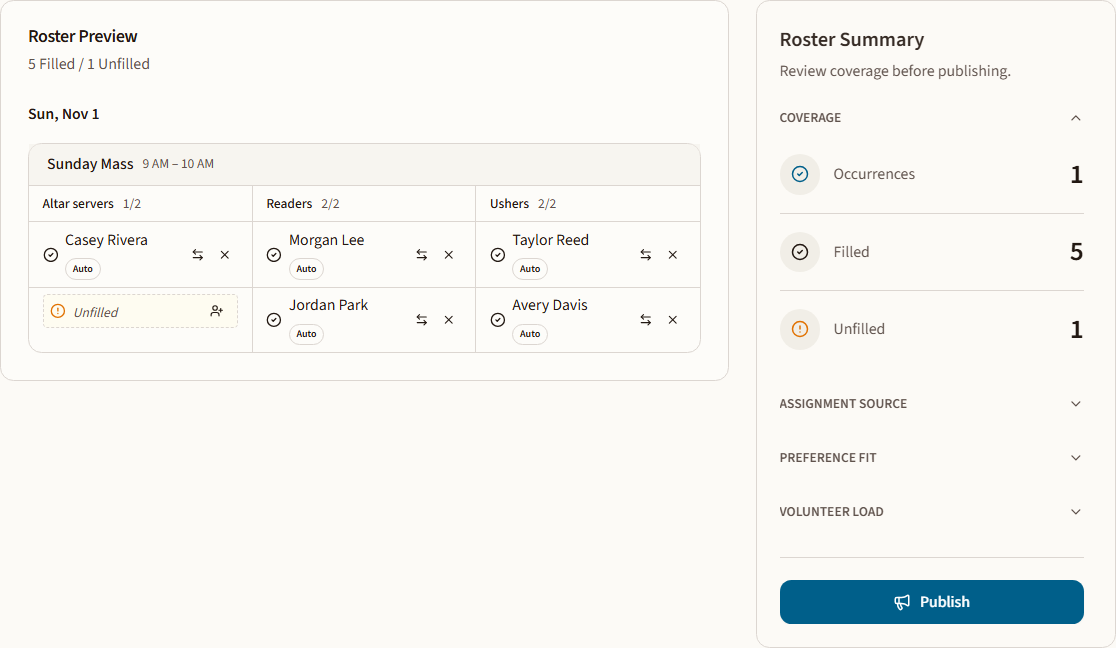
Demonstration roster with fictional volunteers. Review open places and existing commitments before publishing.
Review open places, warnings, repeated assignments and family arrangements. Check any manual changes before publication. If only one qualified altar server is available for two required places, the coordinator still needs to resolve that shortage; generation cannot supply another volunteer.
For the detailed steps and actual product examples, use the church volunteer scheduling walkthrough. The first roster checklist is available as a PDF or an editable Word document.
If you publish over dates that already have assignments in Ministry Steward, the reviewed preview replaces the existing roster for those occurrences. Review the complete result before republishing.
7. Publish and explain where volunteers should look
Before publishing, check communication settings and volunteer notification preferences. Email and SMS delivery follow those settings, volunteer choices and plan allowances; entering a phone number does not by itself establish SMS opt-in.
Publish when the roster is ready for volunteers to use. They can check published assignments on My Events through the website on a phone or computer. Ask the first group to confirm that they can find their assignments, then follow up directly with anyone who needs help.
Send a short message explaining the change. Adapt the example below with your dates and contact details:
Starting [date], please use Ministry Steward for your assignments at [service and time]. Our existing spreadsheet remains the schedule to follow for dates before then. Please join through your invitation, update My Availability by [deadline] and check My Events after we publish. If you need help or your plans change, contact [coordinator and contact details].
Adding an unavailable date after publication does not cancel an existing assignment. Explain how volunteers should withdraw or contact the coordinator if they cannot serve. A withdrawal opens a place; it does not arrange a replacement.
Once the new process is in use, mark the old sheet as an archive for the dates now managed in Ministry Steward. If you print or export a reference copy, make clear where the current schedule is maintained so people know which version to check for changes.
8. Review the first period before adding more services
Ask the coordinator and volunteers what was unclear. Check whether invitations were accepted, availability was updated, assignments were easy to find and remaining gaps had someone responsible for following up.
Record the setup decisions another coordinator would need: service requirements, ministry qualifications, family arrangements, the availability deadline and who reviews the roster. Give a second appropriate coordinator access and have them walk through the process.
Expand to additional services when the first group understands the routine. If you add separate church or campus workspaces, each has its own schedule and volunteer records; Premium supports up to three workspaces under one subscription.
Plan your first roster
If you are considering MSP alongside Ministry Steward, the Ministry Scheduler Pro comparison explains the differences in spreadsheet setup, volunteer tools, pricing and location support.
Choose one service and gather its current volunteer list. If you would like to discuss how your spreadsheet maps to setup, request a scheduling demo. We can walk through the workflow with you.
If you are ready to start, create your church account, choose a plan and begin a 30-day trial. Review the plan and renewal details before activating your trial.